Deleting products in ChannelDock
There may be times when you stop selling a product and would like to remove it from ChannelDock. Follow the instructions to find out how to do this properly.
! Attention:
- Make sure the product/products has been removed from your sales channels. Otherwise, the product will be reloaded after you remove it from ChannelDock.
- If you are connected to a ChannelDock fulfillment center, they must delete the products from their account first.
To delete your products, navigate to Inventory > All products.
Delete single productproducts and multiple products.
Click on the product you want toTo delete
thenone'Editorsettings'moreand'Delete product.'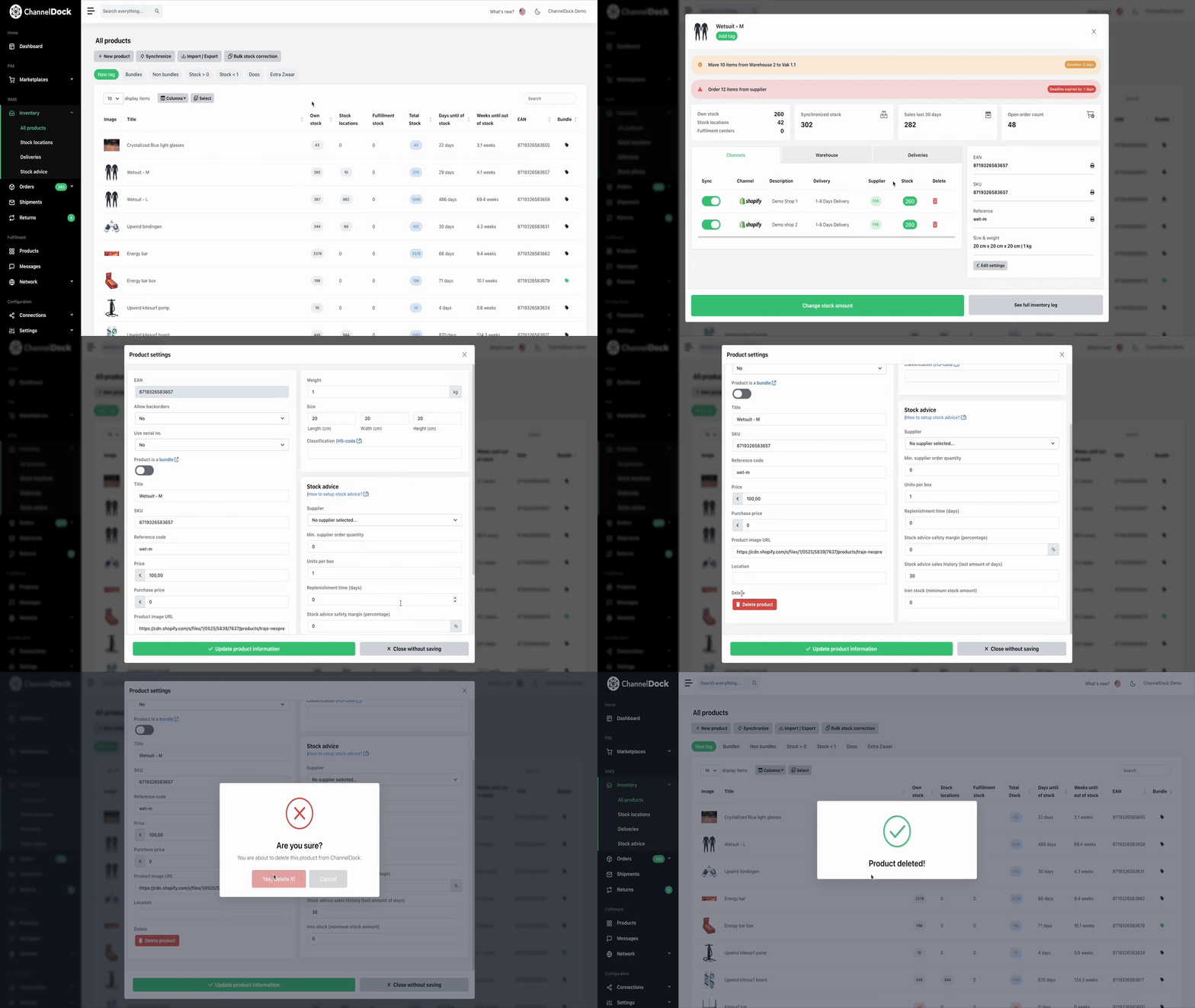
Delete multiple products
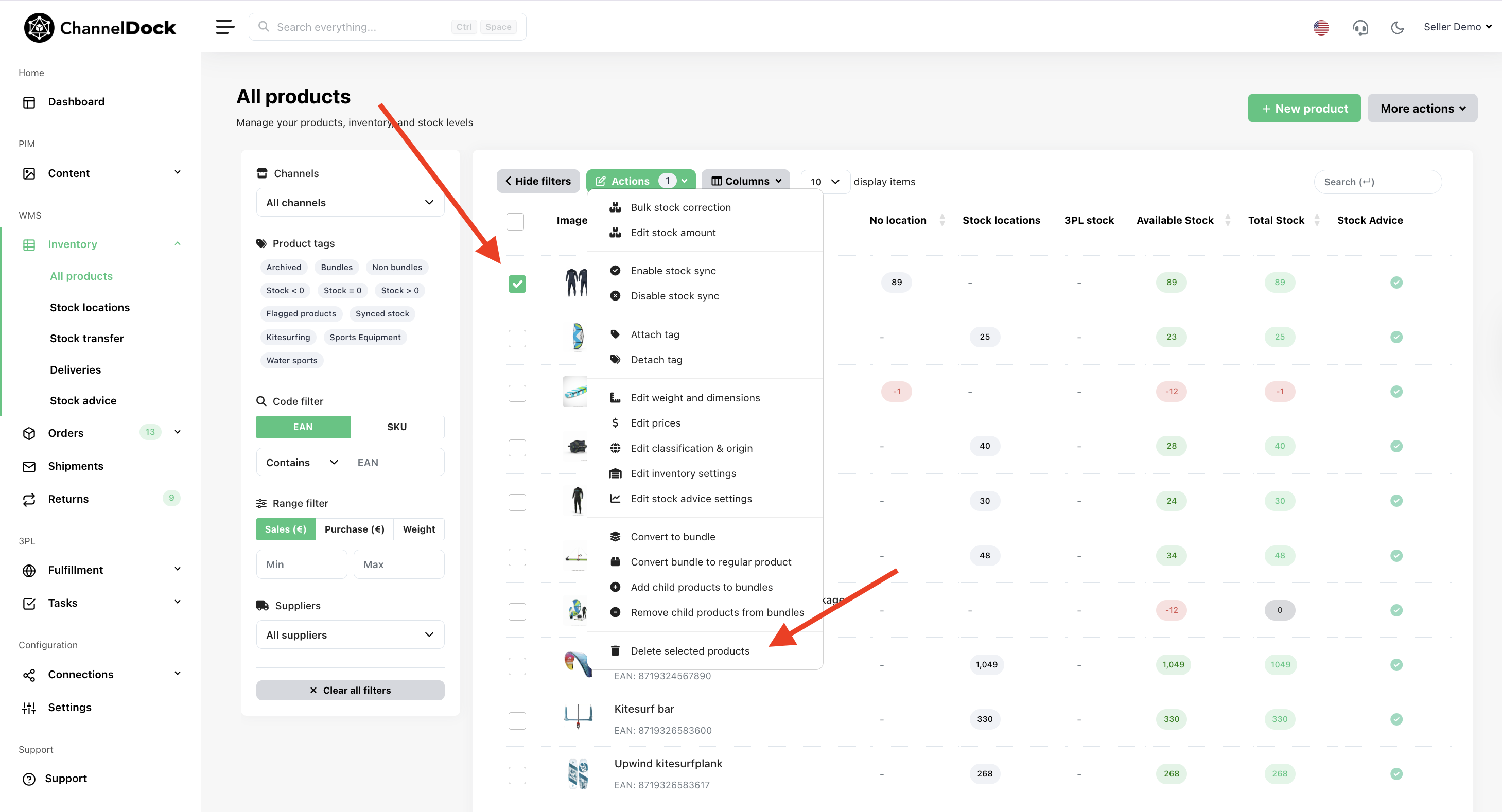
Click on the'Select'button and hold the command key andproducts, select thedesired productsproduct(s), then click'Delete'Actions andconfirmchooseto delete theDelete selectedproducts.products.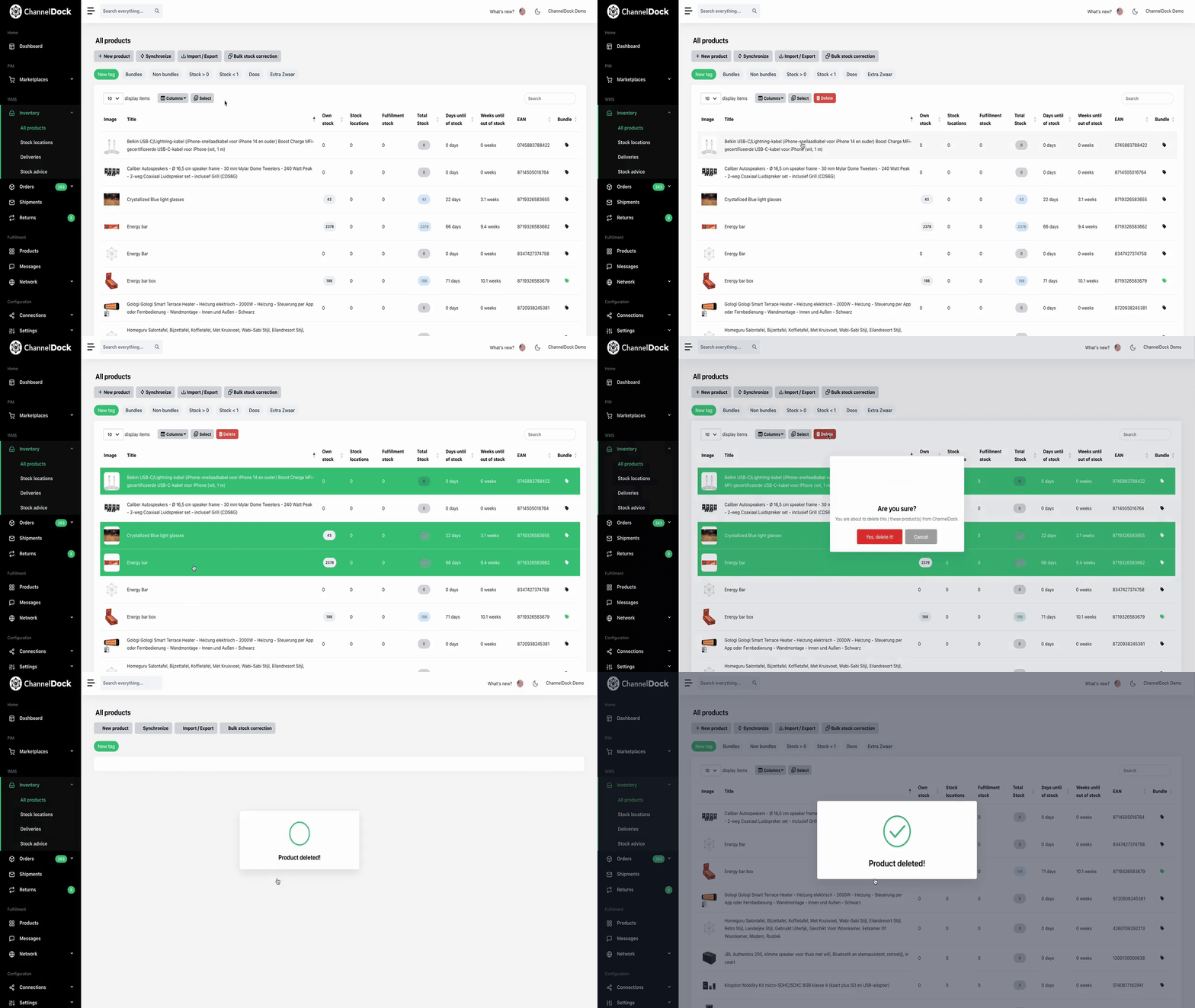
- Create a 'Delete' tag in ChannelDock.
- Add all the products you wish to delete in excel with a separate tag column (Delete) and upload the file to ChannelDock (make sure the tags match in ChannelDock and Excel). More info on how to create tags here.
- Navigate back to All products page and click on the 'Delete' tag.
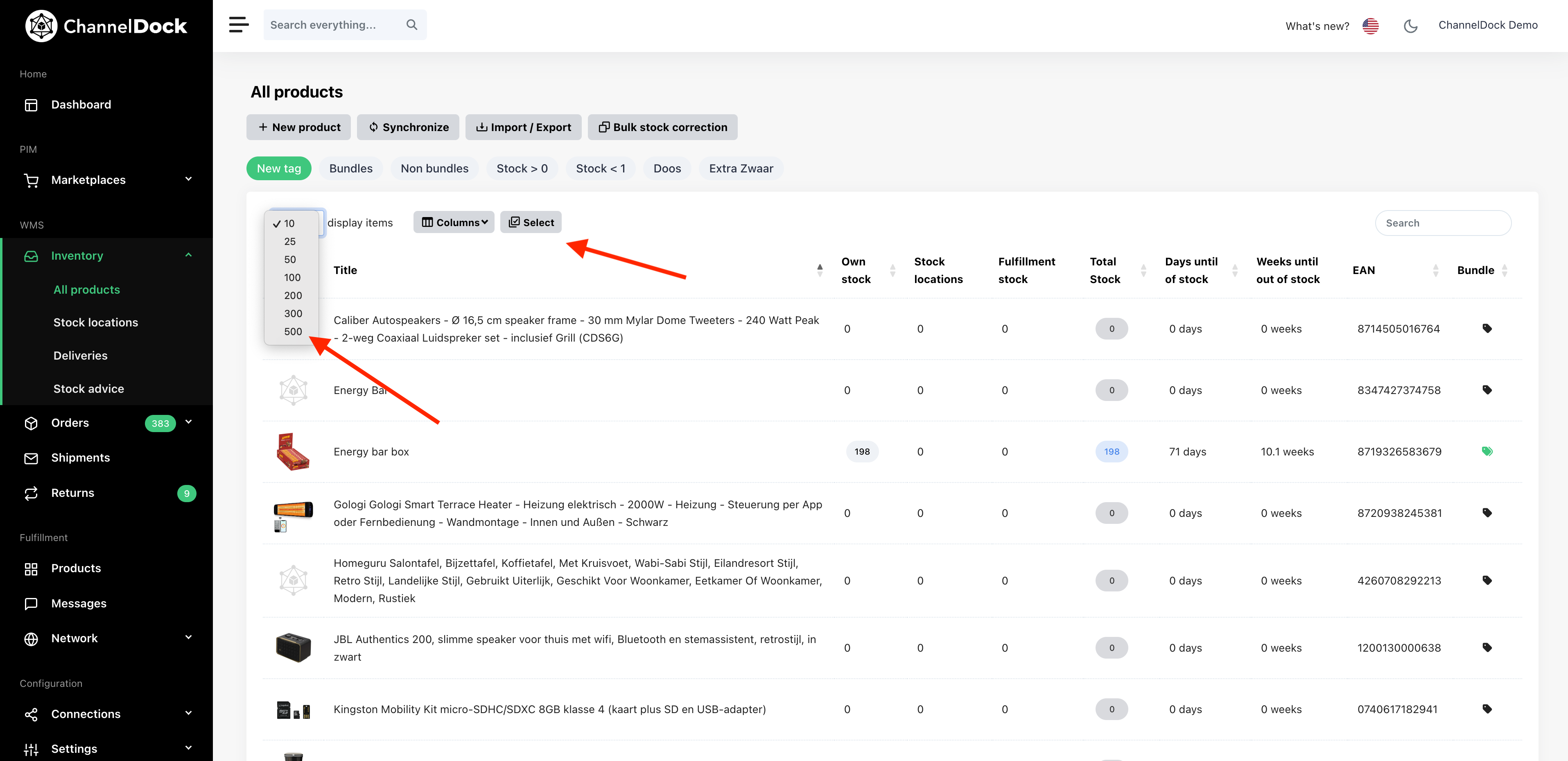
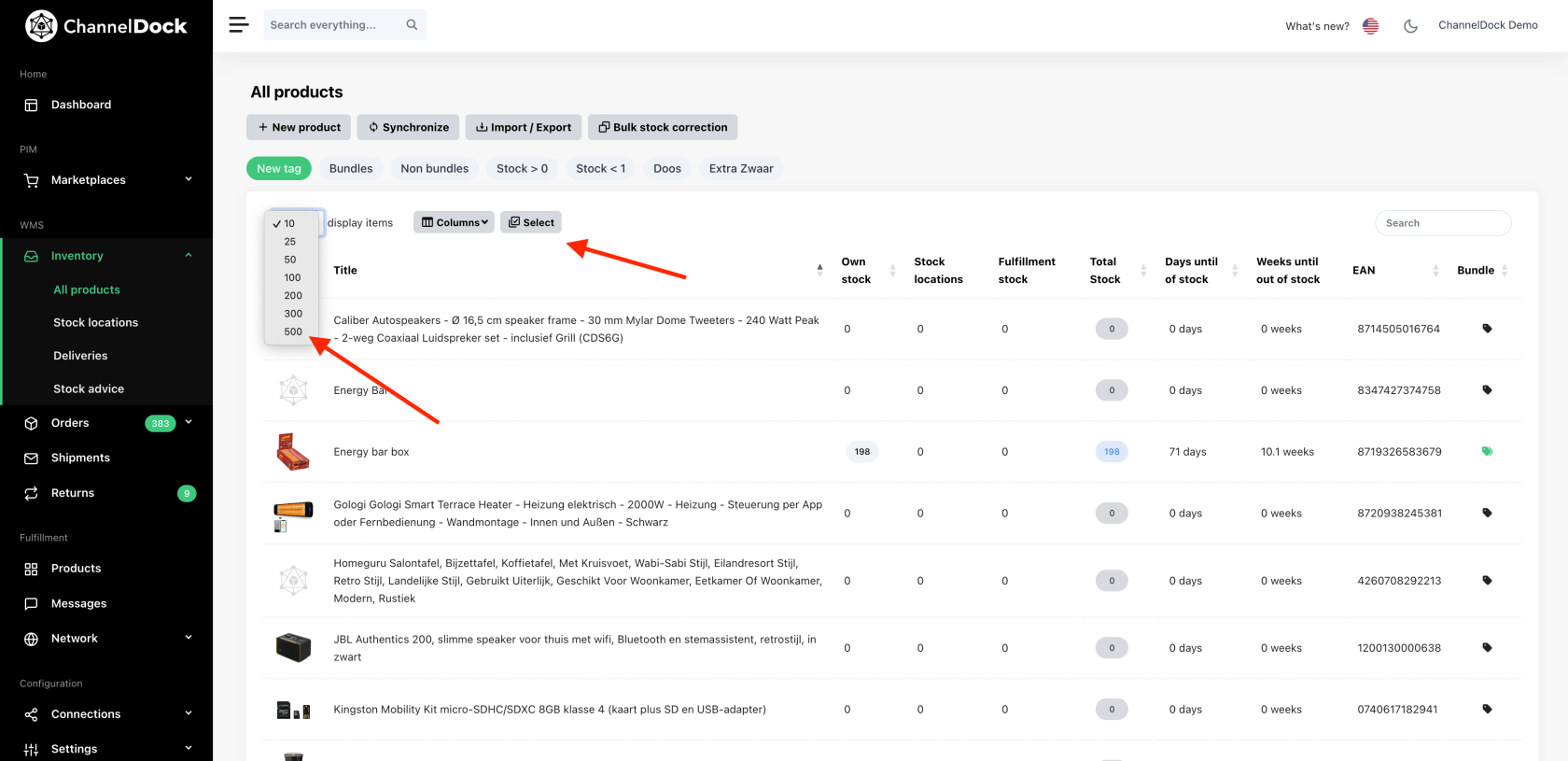
- Change the display items to a higher number then click 'Select.'
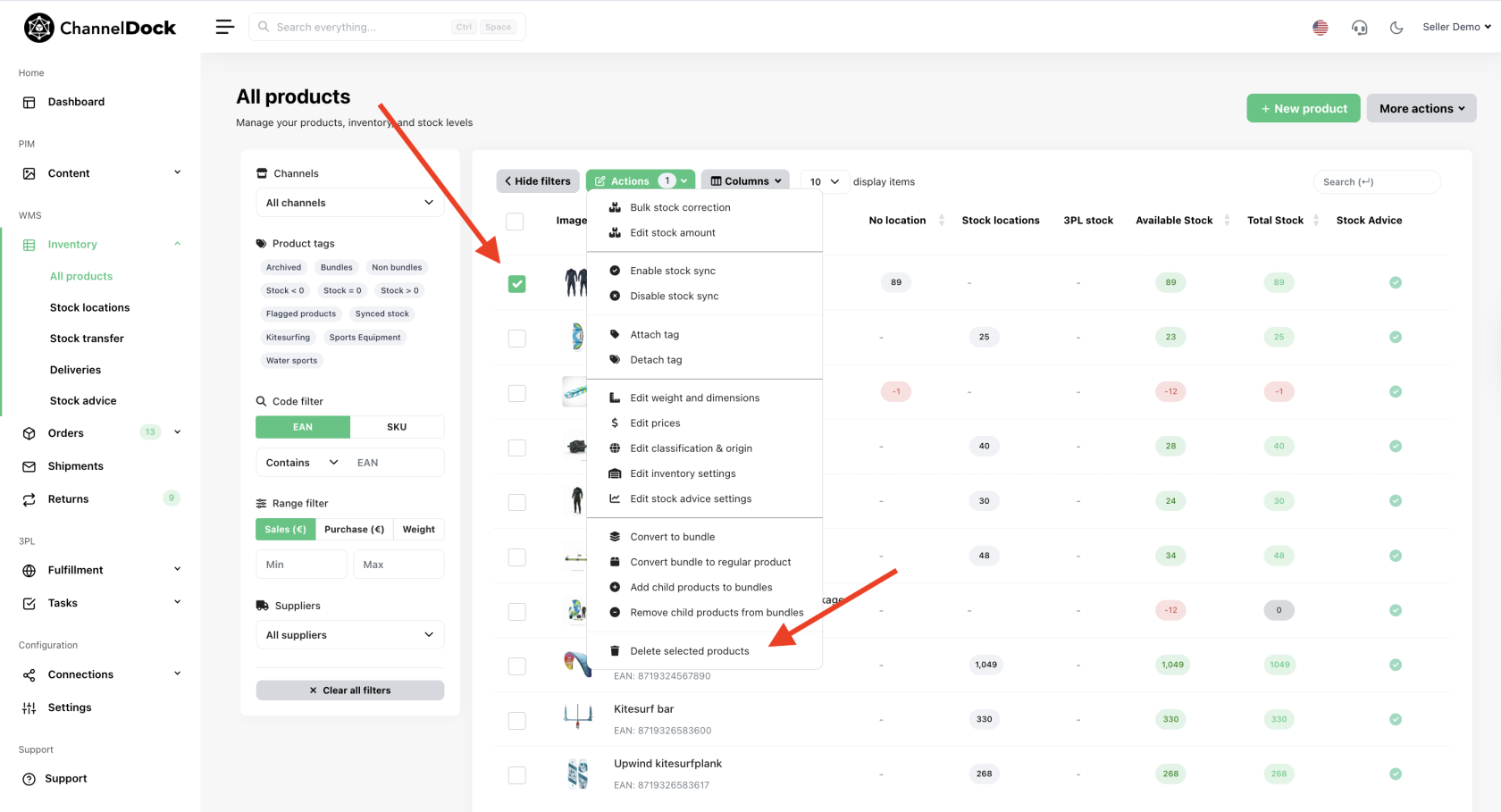
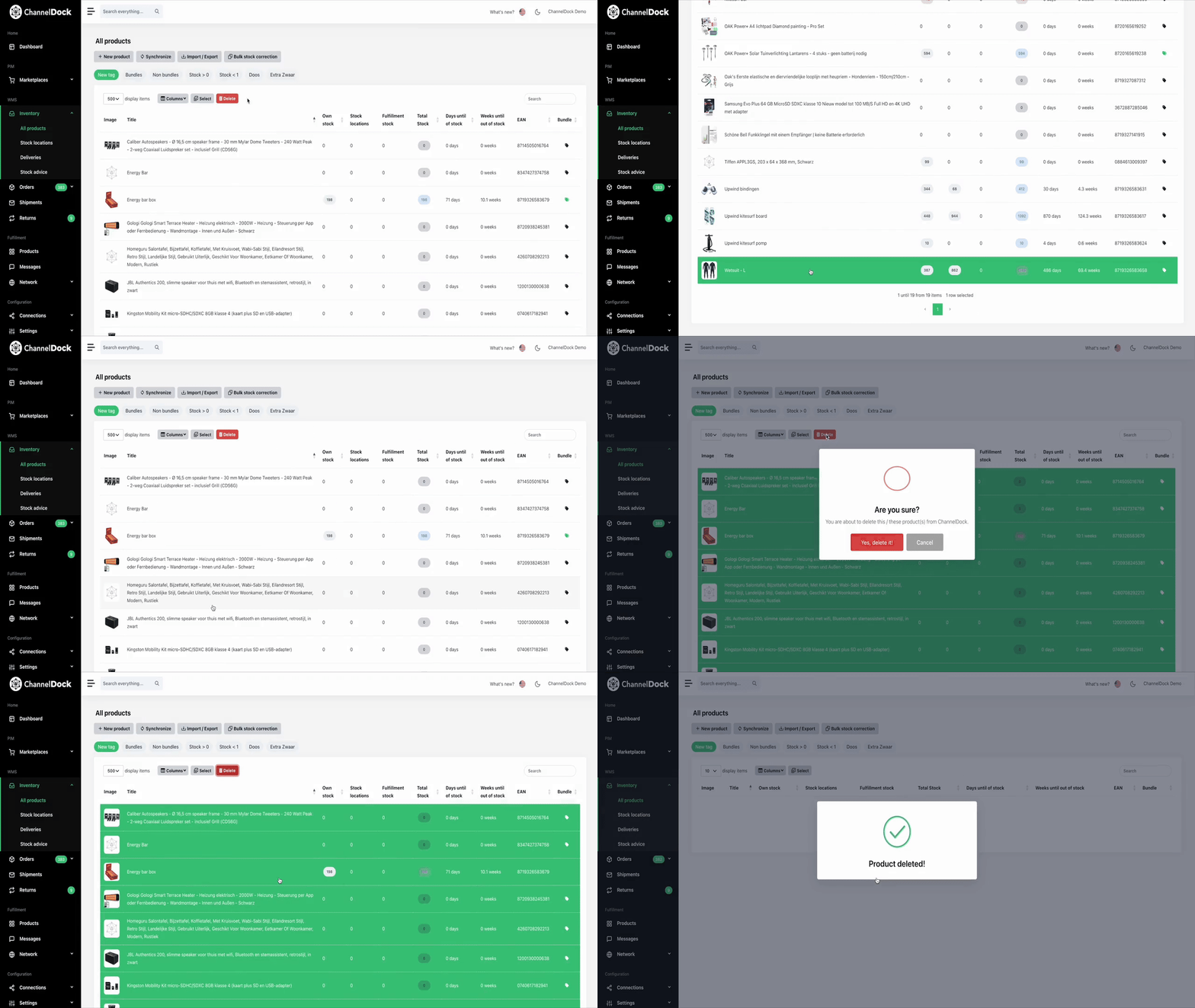
- Navigate to the end of the page (⌘ + down arrow) and select the last item. Navigate to the top of the page (⌘ + up arrow) and select all items (⇧ + select). Now that all the items on the page are selected, click on 'Delete' and confirm.
Delete products in bulk
To bulk delete your products you need to: